
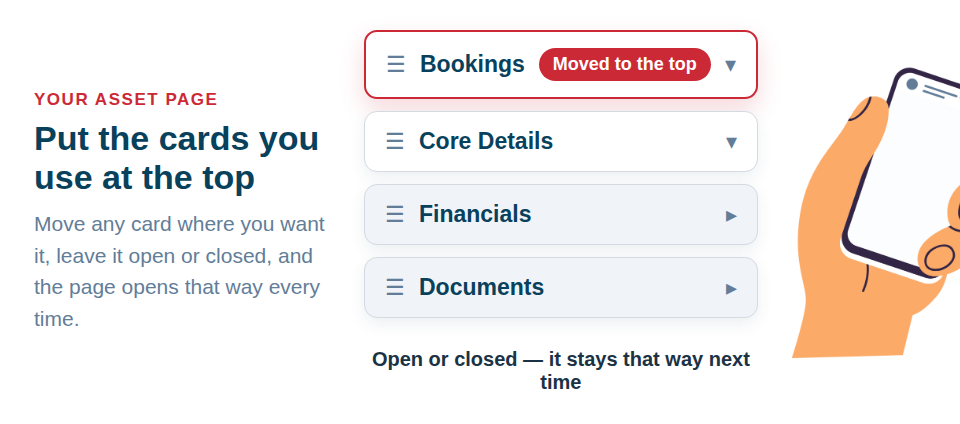
Asset Giant lets everyone arrange the asset page around their own work. Every card — Core Details, Financials, Assignment, Bookings, Documents and the rest — can be moved where you want it and left open or closed, so the things you look at most are at the top and the rest sits out of the way underneath.
This one came from your feedback. Being able to change the layout is what people asked us for, so we built it.
Move any card where you want it
Open any asset and choose View ▾ → Customise view…. From there:
- On a laptop or desktop, drag a card between the three columns, or use the arrow buttons to send it to the next one.
- On a phone, arrow buttons move a card up or down the single stacked list.
- Reset to default layout is always one click away.
Put the card you actually use first, and it is the first thing on the page the next time you open an item — and the time after that.
Open or closed, and it stays that way
Every card opens and closes from its own title, on a laptop or a phone. That state is remembered with the layout, so a card you close stays closed and a card you leave open is open when the page loads.
That is what makes the ordering worth doing: the two cards you need are open at the top, and everything else is a closed one-line row underneath rather than a screen and a half of scrolling.
A closed card is not out of reach, either — its header carries a one-line summary, so “Financials — £24.99, bought 12/03/2025” reads with no tap at all.
Hide what you never fill in
Customise view goes further than closing: it takes a card off the page entirely, for you, on that device. What is on the asset stays on the asset — hiding is only about the page in front of you, and bringing the card back shows everything exactly as it was.
Core Details stays on every layout, because the name, type and status are what make the record an asset in the first place.
Remembered per person, and per device
The layout is saved against you, and separately for desktop and phone. A quick site layout on the handset and a detail-heavy layout on the office machine can both exist without either one overwriting the other, and two people using the same laptop each get their own.
One guard rail makes this safe to use properly: if a required field sits inside a card you have closed or hidden, saving the asset opens that card and points straight at the field, so nothing you need to fix is ever out of sight.
If you manage company settings, you can save your arrangement as the team default — the starting layout for anyone who joins and has not set up their own yet. It is a starting point, not a lock: everyone can still arrange their own.
Custom fields keep one order, company-wide
Custom fields work slightly differently, because their order drives more than one screen — it is also the column order in your exports and in the spreadsheet import template. Anyone who manages company settings can drag them into order from Settings → Custom Fields, or from the handles inside the Custom Fields card itself, and that order then applies for the whole team. The walkthrough is Add Your Own Fields to Track Anything Extra.
Where to start
Open any asset, choose View ▾ → Customise view…, and move the card you use most to the top of the first column. Then close the two you scrolled past on the way in. That is usually the whole job, and it takes about a minute.
The feature page is Customise Your Asset Page, and the step-by-step guide is Arranging the Asset Page: Collapsing, Hiding and Reordering Cards.
Start free and set the page up the way you actually work.