
The moment a system stops being yours alone, one question decides whether you will trust it: what can the other people do? Give a labourer on his first week the same access as the person who owns the company and you will not put your real inventory in it. Give him too little and he will not use it at all, and you are back to a WhatsApp group.
The five roles
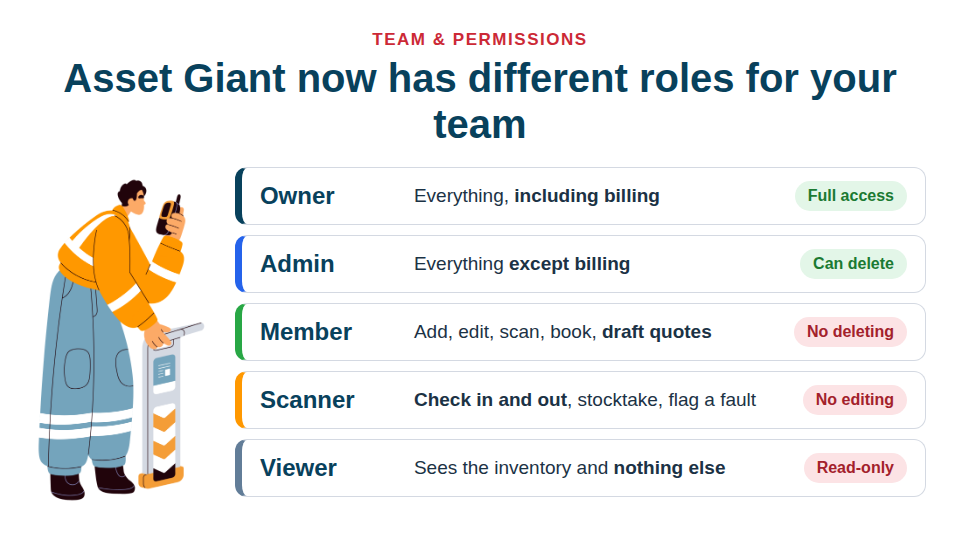
| Role | What it is for |
|---|---|
| Owner | The account holder. Everything, including billing. One per company. |
| Admin | Trusted office or manager. Everything except billing. |
| Member | Everyday tradesperson. Add, edit, scan, book, print and draft quotes — but cannot delete records, issue invoices or change company settings. |
| Scanner | Labourer, new starter or subcontractor. Scan kit in and out, run stocktakes, flag a fault. Cannot add, edit or delete. |
| Viewer | Read-only. Sees the inventory and nothing else. |
The role is chosen when you send the invite, not fixed afterwards in a settings screen you forget exists.
Why Scanner is the one that matters on site
Most site accountability problems are not about who can see the data. They are about who is holding what. Scanner exists for exactly that: a phone, a QR label, and the two things a labourer actually needs to do — check kit out when he takes it, check it back in when he returns it — plus stocktakes and flagging a fault. He cannot rename anything, cannot delete anything, and cannot change your asset ID format at half past four on a Friday.
That is what makes it safe to hand the app to a subcontractor for a fortnight.
Viewer is for the people who are not on your team
A quantity surveyor who wants to see the register. A client who wants to know what is on their job. A hire company checking what is out. Viewer gives them visibility without giving them anything else, and you can revoke it the day the job ends.
The safety fix behind all of this
Being honest about the history: before this shipped, the difference between “Admin” and “Member” really only governed who could manage the team. Everything else ran on a generic permission that every company user held. The settings screens hid the dangerous buttons, but the machinery behind them did not check. In practice that meant somebody invited only to scan tools could, if they went looking, delete records or rewrite the company’s asset ID format.
That is now enforced properly, across the board. And a permission check is not a tenancy check — every request still separately verifies that the record belongs to your company, so one customer can never see another’s data whatever role they hold.
Nobody got demoted
When roles went live, the migration deliberately made the account holder Owner and left every other existing user as Admin, whatever they were before. The release changed nothing for anybody who was already there. The new default of Member applies only to people invited afterwards — which is the right default for the next joiner, and the wrong thing to have imposed retrospectively on someone who has been running your office for two years.
How to set it up in ten minutes
- Go to Settings → Team.
- Invite the office manager as Admin.
- Invite the people who add and edit kit as Member.
- Invite everybody who only handles kit — apprentices, labourers, subcontractors — as Scanner.
- Invite anybody outside the business who needs sight of it as Viewer.
Then leave it alone. Permissions you have to tune weekly are permissions nobody trusts.
The step-by-step is in Managing Your Team Members and Roles and Inviting Your First Team Member. Roles are on every plan, but Free Forever is a single-user plan, so a team needs a paid one — see what each plan includes.